
Neovim Config from Scratch: A Lean init.lua
The traditional way to set up Neovim is to clone somebody’s distribution, open it, watch forty plugins install themselves, and then spend a month discovering which of them is responsible for the thing that just happened. It works, in the sense that a flat bought fully furnished works. You live there; you don’t know where anything is.
The alternative used to be weeks of yak-shaving, because a bare Neovim lacked most of what a
modern editor does. That’s no longer true. Neovim 0.12 ships a plugin manager, the language
server client, completion as you type, tree-sitter highlighting, commenting and a sensible set of
default mappings. The init.lua that turns it into a proper editor is about eighty lines, and you
can read every one of them.
This guide builds that file, with the options worth changing, three plugins and a language server,
and the whole file is at the end for anyone who skips ahead. To see where it
ends up first, the Linux playground runs it in your browser. Press
Space-f once it opens:
nvim src/main.pyThe short version
Section titled “The short version”| You want | Put this in init.lua |
|---|---|
| Line numbers, relative ones too | vim.o.number = true and vim.o.relativenumber = true |
| Undo that survives closing the file | vim.o.undofile = true |
| Search that’s case-insensitive until you type a capital | vim.o.ignorecase = true and vim.o.smartcase = true |
| Completion as you type | vim.o.autocomplete = true |
| A plugin | vim.pack.add({ "https://github.com/owner/repo" }) |
| A language server | install it, then vim.lsp.enable({ "lua_ls" }) |
| Error messages beside the code | vim.diagnostic.config({ virtual_text = true }) |
| Yank to the system clipboard | "+y, or the <leader>y mapping below |
And the commands you will type: :restart after editing the config, :checkhealth when
something’s wrong, and :lua vim.pack.update() when you feel brave.
Install it, and find where the config lives
Section titled “Install it, and find where the config lives”brew install neovimsudo apt install neovimDebian and Ubuntu’s stable releases take a while to catch up with new versions, so check what
nvim --version says. If it’s older than 0.12, Neovim’s own build from its releases
page unpacks anywhere and needs nothing else
installed. On 64-bit ARM (uname -m says aarch64), swap x86_64 for arm64 throughout:
curl -LO https://github.com/neovim/neovim/releases/latest/download/nvim-linux-x86_64.tar.gzsudo rm -rf /opt/nvim-linux-x86_64sudo tar -C /opt -xzf nvim-linux-x86_64.tar.gzThen put it on your PATH, ahead of any older nvim, by adding this line to ~/.bashrc, or to
~/.zshrc if zsh is your shell:
export PATH="/opt/nvim-linux-x86_64/bin:$PATH"Open a new terminal so that nvim finds the new version. To upgrade later, run the three
commands again: the rm clears out the old version first, so none of its files linger in the new
one.
sudo dnf install neovimThe config is ~/.config/nvim/init.lua on macOS and Linux alike: Neovim follows the XDG
convention rather than inventing its own dotfile. :echo stdpath("config") prints the directory
if you’ve moved it. Create the file and Neovim reads it on the next start. There is nothing to
register.
Trying a config without losing yours
Section titled “Trying a config without losing yours”NVIM_APPNAME makes Neovim use a different name for every directory it owns, so
NVIM_APPNAME=starter nvim reads ~/.config/starter/init.lua, keeps its plugins in
~/.local/share/starter/, and leaves your real config entirely alone. It is how you try a new
setup, or somebody else’s, without a backup and a prayer.
What you no longer need to configure
Section titled “What you no longer need to configure”Most of a Vim config from ten years ago is now Neovim’s defaults, and a fair amount of a Neovim config from two years ago is too. Before adding anything, it’s worth knowing what’s already there, if only to avoid writing it again:
| Already done | How it works by default |
|---|---|
| Syntax highlighting, filetype detection, indent plugins | On. No syntax on or filetype plugin indent on |
| The mouse | On in normal, visual and insert mode |
| Search highlighting | hlsearch and incsearch on; Ctrl-L clears the highlight as well as redrawing |
Y |
Yanks to the end of the line, consistent with D and C |
| Commenting | gcc toggles a line, gc a motion or selection: gcip comments a paragraph |
| Colour | 24-bit colour switches itself on when the terminal says it can do it |
| Tree-sitter | Parsers for C, Lua, Markdown and Vimscript ship with it; Lua and Markdown files use them |
| Diagnostics | ]d and [d jump between them, Ctrl-W d shows the one under the cursor |
| LSP mappings | grn rename, gra code action, grr references, gri implementation, grt type definition, gO symbols, K hover, Ctrl-S signature help in insert mode |
| Lists | ]q / [q through the quickfix list, ]b / [b through buffers, ]<Space> adds a blank line below |
| Opening links | gx opens the URL or path under the cursor in the system’s handler |
The Ctrl-L one is worth a moment, because every second config on the internet maps <Esc> to
:nohlsearch. Neovim’s Ctrl-L already runs :nohlsearch, then :diffupdate, then redraws.
The LSP mappings exist all the time but do nothing until a language server is attached to the
buffer, which is the next-but-two section. They are deliberately all under gr, which used to be
“replace a virtual character” and which, statistically, nobody will miss.
Options worth changing
Section titled “Options worth changing”That leaves the options that are genuinely a matter of taste, plus a handful of defaults that are merely conservative. Here is the first half of the file:
-- ~/.config/nvim/init.lua
-- Leader first: a mapping reads it when it is defined, not when it is usedvim.g.mapleader = " "vim.g.maplocalleader = " "
-- What you seevim.o.number = truevim.o.relativenumber = truevim.o.signcolumn = "yes"vim.o.cursorline = truevim.o.scrolloff = 8vim.o.list = truevim.o.breakindent = truevim.o.winborder = "rounded"
-- Indenting: four spaces, unless a filetype plugin says otherwisevim.o.expandtab = truevim.o.shiftwidth = 4vim.o.tabstop = 4
-- Searchingvim.o.ignorecase = truevim.o.smartcase = truevim.o.inccommand = "split"
-- Behaviourvim.o.undofile = truevim.o.confirm = truevim.o.splitright = truevim.o.splitbelow = true
-- Completion as you type, from words in open buffersvim.o.autocomplete = truevim.o.completeopt = "menuone,noselect,popup"
-- The system clipboard, when you ask for itvim.keymap.set({ "n", "x" }, "<leader>y", '"+y', { desc = "Yank to clipboard" })vim.keymap.set({ "n", "x" }, "<leader>p", '"+p', { desc = "Paste from clipboard" })
-- Flash whatever was just yankedvim.api.nvim_create_autocmd("TextYankPost", {  callback = function() vim.hl.on_yank() end,})
vim.o is the Lua spelling of :set, so vim.o.number = true is :set number, and
:help 'number' explains any of them. The ones that aren’t self-explanatory:
- The leader goes first.
<leader>in a mapping is replaced with whatevermapleaderis at the moment the mapping is defined. Set it after a plugin has made its mappings and those keep the default leader,\, and you get to spend an evening wondering why half your shortcuts work. signcolumn = "yes"reserves the gutter permanently. The default,auto, opens it only when there’s a sign to show, so every time a diagnostic or a git change appears, the whole file lurches one column to the right.listshows tabs as>and trailing spaces as-. Neovim’s defaultlistcharsis already the restrained version; Vim’s would show you every line ending as well.winborder = "rounded"puts borders on floating windows: hover documentation, diagnostics, the plugin pickers. Without it they float as unbordered rectangles that blend into the code behind them.tabstop = 4changes how files that use tabs are displayed. Purists keep it at 8 and use onlyshiftwidth; for a file indented with tabs that’s honest and hideous.inccommand = "split"previews a:%s/old/new/as you type it, and opens a split listing the matches that are off screen. The default previews in place only.undofilekeeps undo history in~/.local/state/nvim/undo/, souworks after you closed the file yesterday. It is the single most useful line in this file.confirmturns “E37: No write since last change” into a question asking whether you’d like to save. You would.autocompleteis new in 0.12: completion pops up as you type, withoutCtrl-N. On its own it offers words from your open buffers; once a language server is attached, that gets better. Thecompleteoptline stops it selecting, and so inserting, the first match by itself: Enter closes the menu and starts a new line, as you’d hope.
The clipboard, and why not unnamedplus
Section titled “The clipboard, and why not unnamedplus”The most copied line in Neovim configs is vim.o.clipboard = "unnamedplus", which sends every
yank and delete to the system clipboard. It is convenient right up until you dd a line and find
it has replaced the URL you were about to paste.
It also breaks the clipboard over SSH, which is less obvious. On a server with no clipboard tool,
Neovim falls back to OSC 52, an escape sequence that asks your
local terminal to put the text on your laptop’s clipboard. It does that only while clipboard is
empty, because OSC 52 can be slow and some terminals ask permission every time. Set
unnamedplus and the fallback switches itself off; yanking on the server then quietly does
nothing.
Hence the two mappings instead. <leader>y and <leader>p (Space, then y) use the system
clipboard, and plain y and p stay Vim’s own. Both work locally and over SSH in any terminal
that supports OSC 52, and the macOS and
Linux feature matrices say which do.
Plugins with vim.pack
Section titled “Plugins with vim.pack”Neovim 0.12 has a plugin manager. It is called vim.pack, it clones git repositories, and its
entire user interface is one function:
vim.pack.add({ "https://github.com/neovim/nvim-lspconfig", "https://github.com/ibhagwan/fzf-lua", "https://github.com/lewis6991/gitsigns.nvim",})The first time Neovim starts with that in its config, it asks before cloning anything:
These plugins will be installed:
nvim-lspconfig from https://github.com/neovim/nvim-lspconfigfzf-lua        from https://github.com/ibhagwan/fzf-luagitsigns.nvim  from https://github.com/lewis6991/gitsigns.nvim
Proceed? [Y]es, (N)o, (A)lways:
After that, every plugin in the list is loaded and usable on the next line, so require works
straight away, with no config = function() wrappers and no lazy-loading spec to get wrong. The
clones live in ~/.local/share/nvim/site/pack/core/opt/.
It also writes a lockfile, nvim-pack-lock.json, beside your init.lua, recording the exact
commit of each plugin. Commit it along with the config. On a new machine, Neovim installs the
plugins at the commits in the lockfile rather than at whatever is newest, so the editor you get is
the one you had, not a surprise.
The rest of the life cycle:
- Updating.
:lua vim.pack.update()fetches every plugin and opens a tab listing what would change, with each plugin’s new commits. Read it, then:writeto apply or:quitto back out.:restartafterwards, so the new code is the code that’s running. - Pinning.
{ src = "https://github.com/owner/repo", version = "v1.2.0" }follows a tag, branch or commit instead of the default branch.version = vim.version.range("1.0")follows semver releases of 1.x. - Removing. Delete it from
vim.pack.add(),:restart, then:lua vim.pack.del({ "gitsigns.nvim" }). Removing the line alone leaves the clone on disk. - Checking.
:checkhealth vim.packcompares the lockfile with what’s on disk, and says which command puts right a plugin that’s missing or at the wrong commit.
What it does not do is lazy-load, run build steps for you or give you a dashboard. If your config needs a lazy-loading strategy to start in under a second, the problem is the number of plugins, and lazy.nvim will still be there.
The three plugins
Section titled “The three plugins”- nvim-lspconfig is, these days, a folder of configuration files: one per language server, saying what command starts it, which filetypes it serves and how to find the project root. Neovim’s own LSP client reads them. You don’t call anything in it.
- fzf-lua puts fzf in front
of files, open buffers, help, grep results and most of the LSP’s lists. Its grep runs
ripgrep, so it shares rg’s opinions about
.gitignore. Bothfzfandrgneed to be installed in their own right. - gitsigns.nvim marks added, changed and
deleted lines in the gutter that
signcolumnreserved, and does a good deal more if you go looking.
Configuring them takes a few lines:
require("gitsigns").setup()
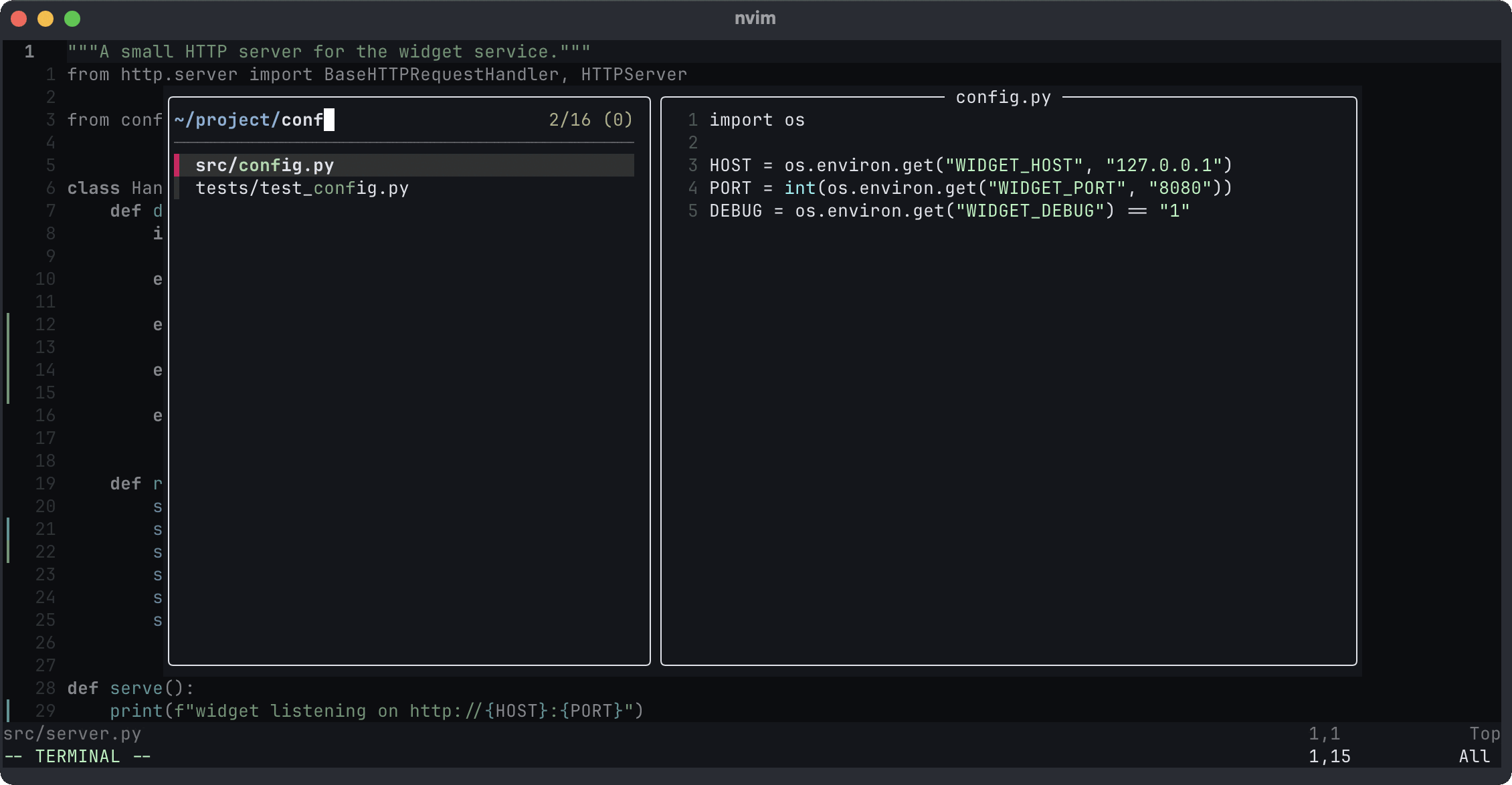
local fzf = require("fzf-lua")vim.keymap.set("n", "<leader>f", fzf.files, { desc = "Find files" })vim.keymap.set("n", "<leader>/", fzf.live_grep, { desc = "Grep the project" })vim.keymap.set("n", "<leader>b", fzf.buffers, { desc = "Open buffers" })vim.keymap.set("n", "<leader>h", fzf.helptags, { desc = "Search help" })
gitsigns does nothing until setup() is called; fzf-lua needs no setup at all. Space-f to find a
file is most of what people install an IDE for.
LSP: a language server, properly
Section titled “LSP: a language server, properly”The LSP client is built in, and since 0.11 it is configured with two functions. Install a server, then enable it by name:
vim.lsp.enable({ "lua_ls" })That’s it. When you open a Lua file, Neovim looks up lua_ls (which nvim-lspconfig supplied),
finds the project root, starts lua-language-server, and attaches it to the buffer. The gr
mappings in the defaults table now do something.
Neovim doesn’t install servers, though. Each one comes from its own ecosystem:
| Language | Name to enable | Install the server with |
|---|---|---|
| Lua | lua_ls |
brew install lua-language-server |
| Python | pyright |
npm install -g pyright |
| Go | gopls |
go install golang.org/x/tools/gopls@latest |
| Rust | rust_analyzer |
rustup component add rust-analyzer |
| TypeScript, JavaScript | ts_ls |
npm install -g typescript typescript-language-server |
| Bash | bashls |
npm install -g bash-language-server |
The full list is nvim-lspconfig’s lsp/ folder;
the file name is the name to enable. If enabling one appears to do nothing, :checkhealth vim.lsp
lists each enabled config and whether its command could be found, which it usually couldn’t.
mason.nvim exists to install servers from inside Neovim, if you would rather your editor ran a
package manager.
“Undefined global vim”
Section titled ““Undefined global vim””Open your own init.lua with lua_ls running and every single line gets a warning. The server
knows Lua, not Neovim, and as far as it is concerned vim is a variable nobody declared. Tell it
about Neovim’s runtime, where vim is defined:
vim.lsp.config("lua_ls", { settings = { Lua = { runtime = { version = "LuaJIT" }, workspace = { library = { vim.env.VIMRUNTIME } }, }, },})vim.lsp.config() merges with what nvim-lspconfig provides, so you only write the part you’re
changing. The same pattern adjusts any server: vim.lsp.config("pyright", { settings = ... }).
This applies to every Lua project you open, which is harmless unless you also write Lua for
something else, where vim. will now autocomplete with a straight face. lazydev.nvim does the
same job only for Neovim configs and plugins, if that bothers you.
Diagnostics you can see
Section titled “Diagnostics you can see”Since 0.11, diagnostics show as an underline and a sign in the gutter, but not as text: the
message beside the code was switched off by default, on the grounds that it was noisy. It is
noisy. It is also the only way to read an error without moving the cursor onto it first and
pressing Ctrl-W d. Put it back:
vim.diagnostic.config({ virtual_text = true })virtual_lines = true is the alternative: the message on its own line beneath the code, which
copes better with long messages and makes the file jump around. The underline is a curly one in
any terminal that supports undercurl, which is most of them now: the feature matrices have the
list for macOS and
Linux.
LSP completion
Section titled “LSP completion”autocomplete already pops up words from your buffers. Language server completion — methods,
fields, signatures, the reason anyone wants an IDE — needs switching on per server, when it
attaches:
vim.api.nvim_create_autocmd("LspAttach", { callback = function(ev) local client = assert(vim.lsp.get_client_by_id(ev.data.client_id)) if client:supports_method("textDocument/completion") then vim.lsp.completion.enable(true, client.id, ev.buf, { autotrigger = true }) end end,})With autotrigger, typing a server’s trigger character opens the menu by itself: vim. in a Lua
file lists the whole API. Mid-word, Ctrl-X Ctrl-O asks the server explicitly. Tab jumps
between a snippet’s placeholders after you accept one with arguments.
There are plugins that do this with fuzzy matching, ghost text and a dozen sources, blink.cmp being the current favourite. Try the built-in one for a week first. It is fast, and it has no configuration to go wrong.
Tree-sitter for your other languages
Section titled “Tree-sitter for your other languages”Lua and Markdown get tree-sitter highlighting out of the box. Everything else falls back to Vim’s regex-based syntax files, which are fine, and occasionally confused by a string containing a quote.
nvim-treesitter installs parsers for
everything else. It builds them from source, so it needs the tree-sitter CLI (0.26.1 or
later, from your package manager: brew install tree-sitter-cli), a C compiler, curl and tar.
Without the CLI, the install fails with a message about whichever of them it tried first.
vim.pack.add({ "https://github.com/nvim-treesitter/nvim-treesitter" })require("nvim-treesitter").install({ "python", "bash", "javascript" })vim.api.nvim_create_autocmd("FileType", { pattern = { "python", "sh", "javascript" }, callback = function() vim.treesitter.start() end,})install() runs in the background and skips parsers it already has, so leaving it in the config is
cheap. Installing a parser doesn’t use it, though: vim.treesitter.start() does, which is what the
autocommand is for. The pattern is the filetype, not the parser: a shell script is sh, which
the bash parser reads.
This is the plugin’s current version, a rewrite that does less than the one most tutorials
describe. Any guide calling require("nvim-treesitter.configs").setup({ ensure_installed = ... })
is for the old one, and that module no longer exists.
The whole file
Section titled “The whole file”-- ~/.config/nvim/init.lua
-- Leader first: a mapping reads it when it is defined, not when it is usedvim.g.mapleader = " "vim.g.maplocalleader = " "
-- What you seevim.o.number = truevim.o.relativenumber = truevim.o.signcolumn = "yes"vim.o.cursorline = truevim.o.scrolloff = 8vim.o.list = truevim.o.breakindent = truevim.o.winborder = "rounded"
-- Indenting: four spaces, unless a filetype plugin says otherwisevim.o.expandtab = truevim.o.shiftwidth = 4vim.o.tabstop = 4
-- Searchingvim.o.ignorecase = truevim.o.smartcase = truevim.o.inccommand = "split"
-- Behaviourvim.o.undofile = truevim.o.confirm = truevim.o.splitright = truevim.o.splitbelow = true
-- Completion as you type, from words in open buffersvim.o.autocomplete = truevim.o.completeopt = "menuone,noselect,popup"
-- The system clipboard, when you ask for itvim.keymap.set({ "n", "x" }, "<leader>y", '"+y', { desc = "Yank to clipboard" })vim.keymap.set({ "n", "x" }, "<leader>p", '"+p', { desc = "Paste from clipboard" })
-- Flash whatever was just yankedvim.api.nvim_create_autocmd("TextYankPost", { callback = function() vim.hl.on_yank() end,})
-- Plugins: cloned on first start, pinned in nvim-pack-lock.jsonvim.pack.add({ "https://github.com/neovim/nvim-lspconfig", "https://github.com/ibhagwan/fzf-lua", "https://github.com/lewis6991/gitsigns.nvim",})
require("gitsigns").setup()
local fzf = require("fzf-lua")vim.keymap.set("n", "<leader>f", fzf.files, { desc = "Find files" })vim.keymap.set("n", "<leader>/", fzf.live_grep, { desc = "Grep the project" })vim.keymap.set("n", "<leader>b", fzf.buffers, { desc = "Open buffers" })vim.keymap.set("n", "<leader>h", fzf.helptags, { desc = "Search help" })
-- Language servers: install the server, then enable it by namevim.lsp.config("lua_ls", { settings = { Lua = { runtime = { version = "LuaJIT" }, workspace = { library = { vim.env.VIMRUNTIME } }, }, },})vim.lsp.enable({ "lua_ls" })
vim.diagnostic.config({ virtual_text = true })
vim.api.nvim_create_autocmd("LspAttach", { callback = function(ev) local client = assert(vim.lsp.get_client_by_id(ev.data.client_id)) if client:supports_method("textDocument/completion") then vim.lsp.completion.enable(true, client.id, ev.buf, { autotrigger = true }) end end,})Try it in the playground, where it’s what nvim runs, plugins and all:
nvim src/main.pyPress Space-f to find a file or Space-/ to search the project, then change a line and watch
gitsigns mark it in the gutter.
The language server wants a Lua file, and the config itself will do. Type vim. on an empty
line:
nvim ~/.config/nvim/init.luaThe first time, the menu takes a while to turn up: the playground is an emulated PC, and a small
one, so the server is slow to read Neovim’s runtime. That’s also why its copy runs the lighter
emmylua_ls in place of lua_ls.
Add servers to the vim.lsp.enable() list as you install them, and the tree-sitter block if you
have the compiler for it. Once the file grows past a screen or two, split it: anything in
~/.config/nvim/plugin/ is run automatically after init.lua, so plugin/lsp.lua and
plugin/keymaps.lua need no require to load them.
Common Neovim config gotchas
Section titled “Common Neovim config gotchas”Unknown option 'autocomplete' or attempt to index field 'pack' (a nil value). Your
Neovim is older than 0.12. Lua stops at the first error, so nothing after that line ran either:
no plugins, no language server, no clipboard mappings. nvim --version confirms it, and the
install section has a build that’s new enough.
An edited config does nothing. init.lua is read at startup. :restart quits and starts
Neovim again in the same terminal window, and is far more reliable than :source-ing
a file that has already run once and set up its autocommands twice.
Escape is slow inside tmux. tmux before 3.5 waits half a second after an Escape, to see
whether it’s the start of a longer key sequence, which in a modal editor is an eternity. Current
versions wait 10 milliseconds. On an older one, add set -sg escape-time 10, as in the tmux
guide’s starter config. :checkhealth flags it, among much
else.
Colours look wrong in tmux or over SSH. Neovim turns on 24-bit colour only when the terminal says it can, and tmux and SSH are both excellent at losing that message on the way. The truecolor guide goes through it one layer at a time.
Some Ctrl and Alt combinations never arrive. Terminals traditionally can’t tell Ctrl-I
from Tab, or Ctrl-[ from Escape. Neovim switches on the kitty keyboard protocol in terminals
that support it, which fixes this. The macOS and
Linux feature matrices say which do.
A plugin’s README tells you to use lazy.nvim. Most do, and most of the time the plugin works
just as well with vim.pack.add() and a require("plugin").setup() on the next line, since lazy’s
opts = {} is only a roundabout way of calling setup(). The exceptions are plugins with a build
step, and :help vim.pack-events shows how to run one.
You can’t find what a key does. :verbose nmap <leader>f prints the mapping and the file and
line that made it. :map with no argument lists the lot, Neovim’s built-in ones included.
Where next
Section titled “Where next”The config, the lockfile and the plugin/ directory belong in your
dotfiles, which is also where the lockfile pays for itself. If you live
in Neovim inside tmux, the tmux tutorial and the
truecolor guide cover the two things most likely to go wrong
between them. The fzf guide and the ripgrep
guide explain what fzf-lua is doing on your behalf, and
the keyboard shortcuts guide covers editing at the shell
prompt, where Neovim’s keys don’t reach.
If you’d rather start from more, kickstart.nvim is
the same idea at a larger size: a single init.lua, built on vim.pack too, but about a thousand
lines, nearly half of them comments, with Telescope, blink.cmp, and mason.nvim to install language
servers for you. And if you decide you wanted the furnished flat after all,
LazyVim furnishes it on lazy.nvim, and lets you move the furniture.
For everything this guide skipped, :help is genuinely good, and :help lua-guide is the
introduction to Lua in Neovim that this article would otherwise have had to be. :help news
lists what changed in the version you’re running, which is worth reading on every upgrade:
it’s where the next half-dozen lines of your config quietly become defaults.