
fzf: Fuzzy Finding on the Command Line
There is a file. You know it exists, you know roughly what it’s called, and you know it’s
somewhere under this directory. What you don’t know is the path, so you run ls, then cd,
then ls again, then cd .. because that was the wrong one — navigating your own project by
touch, like a man feeling for the light switch in a hotel room.
Meanwhile Ctrl+R searches your shell history by exact substring, which requires you to
remember the beginning of a command you are searching for because you have forgotten it.
fzf fixes both, and roughly forty other things you hadn’t thought to be annoyed about yet. Written by Junegunn Choi in Go, it does precisely one thing: take a list on standard input, let you type at it, print what you picked. Every impressive demo you have seen — the git branch switcher, the process killer, the file picker with syntax-highlighted previews — is that single behaviour with a different list plugged into the front.
The short version
Section titled “The short version”| You want | Command |
|---|---|
| Pick a file, interactively | vim "$(fzf)" |
| Fuzzy history search | Ctrl+R |
| Insert a file path into the line | Ctrl+T |
| Jump to a subdirectory | Alt+C |
| Pick from any list at all | <anything> | fzf |
| Pick several | <anything> | fzf -m (Tab to mark) |
| See what you’re choosing | fzf --preview 'bat --color=always {}' |
The key bindings need the shell integration below. Everything else works the moment fzf is installed.
Installing it and wiring it in
Section titled “Installing it and wiring it in”brew install fzf # macOSsudo apt install fzf # Debian, Ubuntusudo dnf install fzf # Fedora, RHELCheck the version, because it matters here more than it usually does:
fzf --versionfzf moves quickly and distributions do not, so the copy your package manager hands you may be some years behind the documentation you’re reading. Then add one line to your shell config:
eval "$(fzf --zsh)"eval "$(fzf --bash)"fzf --fish | sourceThat single line installs the key bindings and the completion machinery. Open a new shell and
press Ctrl+R.
The three key bindings you just installed
Section titled “The three key bindings you just installed”This is the whole of the shell integration, and it’s the reason fzf ends up on every machine you own.
| Key | Does | Configure with |
|---|---|---|
Ctrl+T |
Picks files and directories, pastes the paths | FZF_CTRL_T_COMMAND, FZF_CTRL_T_OPTS |
Ctrl+R |
Fuzzy-searches shell history, replaces the line | FZF_CTRL_R_OPTS |
Alt+C |
Picks a subdirectory and cds into it |
FZF_ALT_C_COMMAND, FZF_ALT_C_OPTS |
Three details that aren’t obvious and change how much use you get out of them:
Ctrl+T types, it doesn’t run. It inserts the paths you picked at the cursor and hands the
line back to you, so the natural rhythm is to write git add , press Ctrl+T, mark three
files with Tab, press Enter, and then look at the assembled command before committing to
it. Multi-select is on by default here.
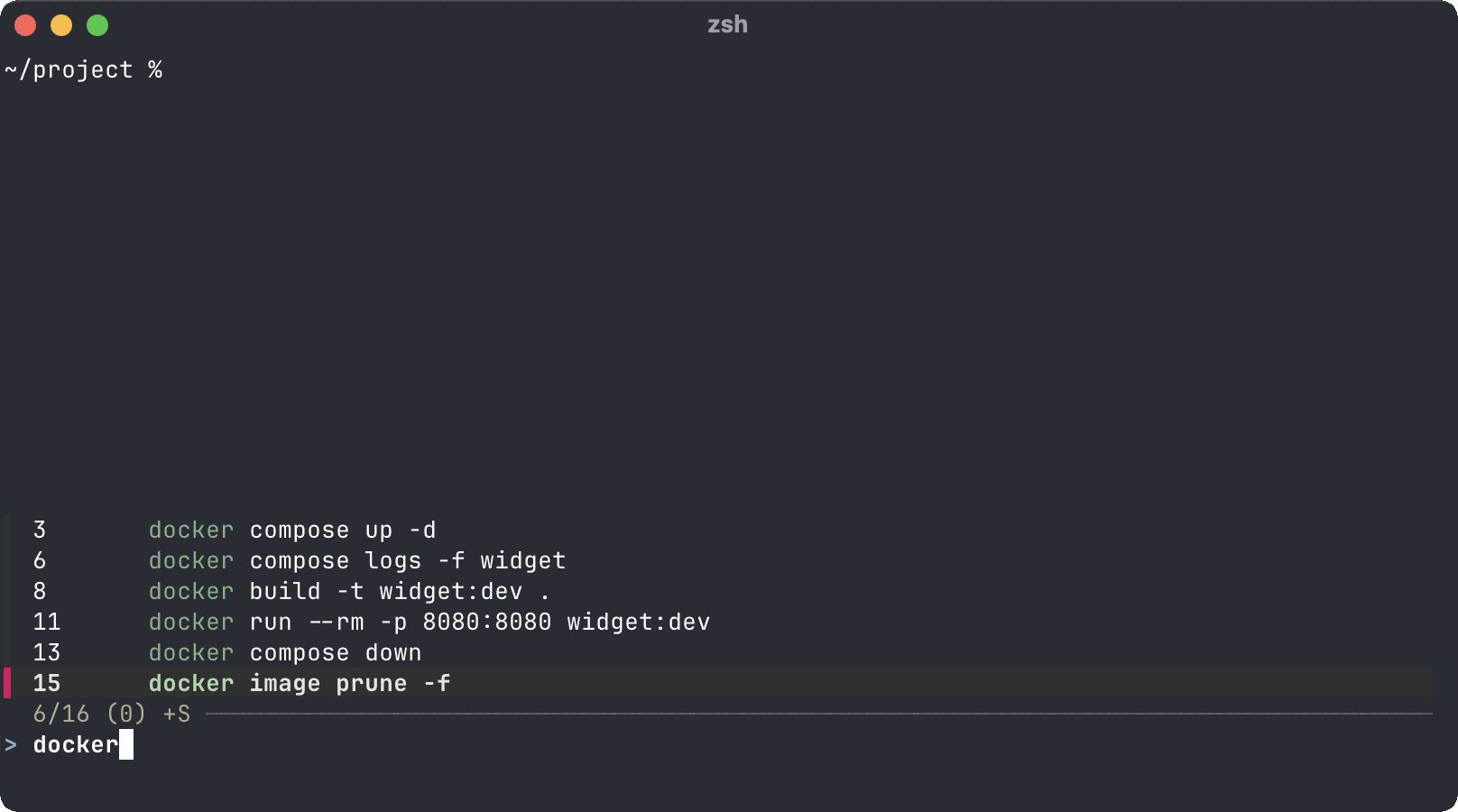
Ctrl+R inherits what you’ve already typed. Start typing docker ru, realise you can’t
remember the rest, and press Ctrl+R — the query is pre-filled with the line so far rather
than thrown away. The history is deduplicated on the way in, and pressing Ctrl+R a second
time inside the finder toggles between best-match and chronological ordering, which is what you
want when you’re after “the one I ran on Tuesday” rather than “the one I run constantly”.
Alt+C runs immediately. It replaces the line with a cd to the absolute path and
executes it. If nothing happens when you press it, you’re probably on a Mac — see the gotchas.
** and Tab, the bit everyone misses
Section titled “** and Tab, the bit everyone misses”The integration also installs a completion trigger. Type ** and press Tab anywhere you’d
normally expect completion, and fzf takes over:
vim src/**<TAB> # files under src/cd ~/git/**<TAB> # directories onlyssh **<TAB> # hosts from your SSH config and known_hostskill -9 **<TAB> # processes, with the PID inserted for youexport **<TAB> # environment variablesunset **<TAB> # dittoThe kill one is worth internalising: it lists processes and inserts the PID, which removes
the entire ps aux | grep-then-copy-the-number ritual. The trigger sequence is
FZF_COMPLETION_TRIGGER if ** clashes with something in your muscle memory. This is a Bash
and Zsh feature — the fish integration gives you the key bindings only.
Host completion reads the same ~/.ssh/config that makes your connections
readable, so the two compound: name your hosts once, then never type a
hostname again.
The search syntax nobody reads
Section titled “The search syntax nobody reads”Typing into fzf performs a fuzzy match: the characters you type must appear in order, but not
adjacently. srmn finds src/main.rs. That is the default, and most people stop there.
There are five operators, and they turn fzf from a guessing game into something you can aim. Given a list of file paths:
| You type | You get |
|---|---|
srmn |
Fuzzy: src/main.rs, src/main_test.rs |
'main |
Exact substring: anything containing main |
^src |
Prefix: paths starting src |
.rs$ |
Suffix: Rust files |
!test |
Negation: everything without test |
md$ | js$ |
Either: Markdown or JavaScript |
Terms separated by spaces are ANDed, so the pattern you’ll actually reach for looks like this:
'rs !testExact rs, excluding anything matching test. Half of using fzf well is remembering that !
exists; the number of times the thing you want is best described as “not the other one” is
remarkable.
Two flags worth knowing alongside it: -e (--exact) inverts the default so everything is an
exact match unless you prefix it with a fuzzy operator, and --nth restricts matching to
particular fields:
ps -ef | fzf --nth 8.. # match against the command, not the PID or timestampWithout that, searching a process list for 2 matches every PID containing a 2, which is most
of them.
Previews, the feature that makes it stick
Section titled “Previews, the feature that makes it stick”fzf can run a command for whatever’s currently highlighted and show the output beside the list.
{} is replaced with the current line:
fzf --preview 'bat --color=always --style=numbers {}'No fzf or bat to hand? The ▶︎ on that block types it into a Linux terminal that runs in this tab, with both installed and a demo project to preview.
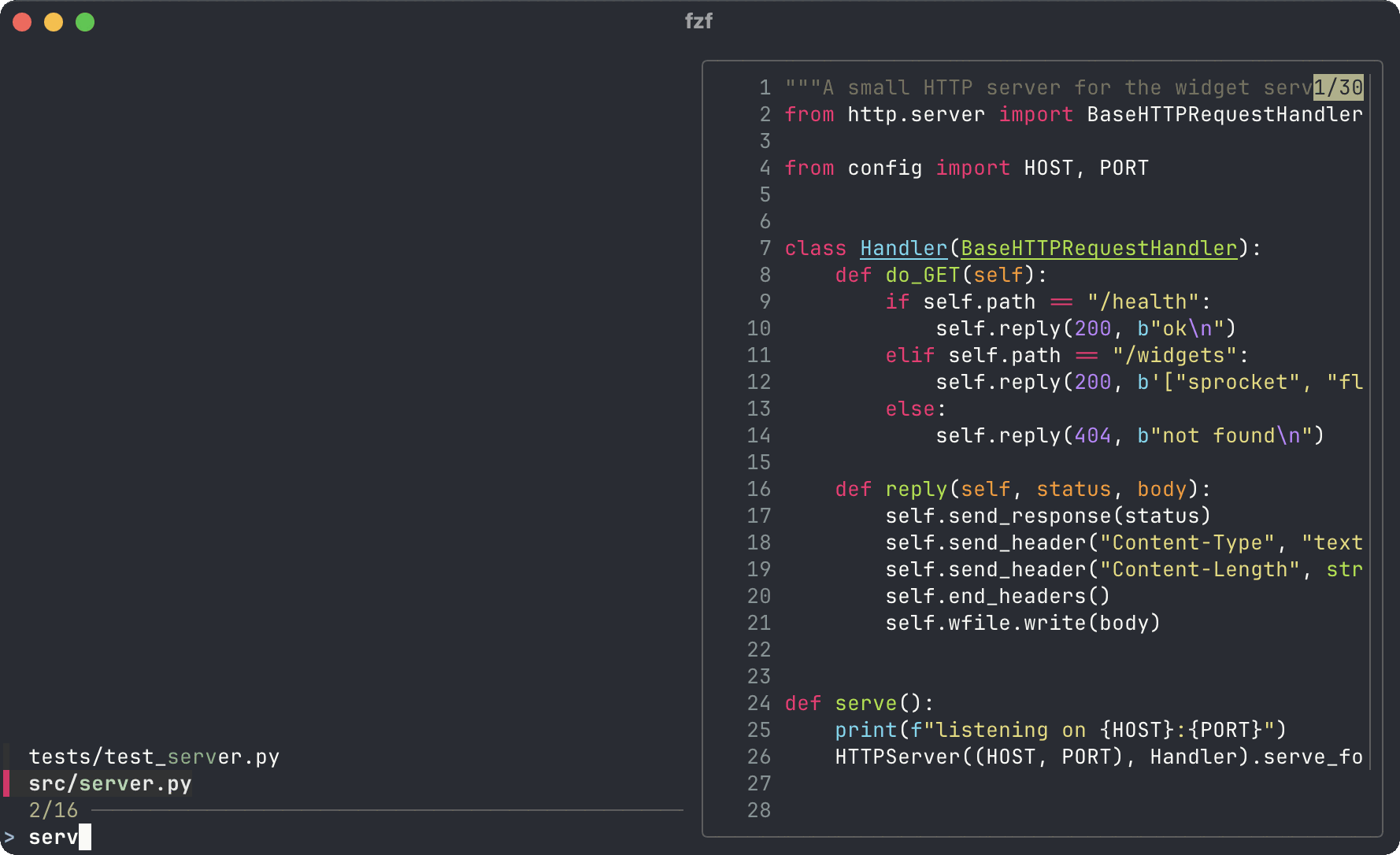
Now you’re not picking from a list of paths, you’re reading the file before you open it. The same trick works on anything you can render:
# directories, with contentsfd --type d | fzf --preview 'eza --tree --level=2 --colour=always {}'
# git branches, with recent commitsgit branch --format='%(refname:short)' | fzf --preview 'git log --oneline --color=always -20 {}'Placeholders are more capable than {} suggests. {1}, {2} and so on give you individual
fields, {q} is the current query, and {+} is every selected item. With --delimiter you can
carve up structured output — the reason the git log recipe below works at all.
Position and behaviour come from --preview-window:
--preview-window 'right,60%,border-left,wrap'--preview-window 'up,40%,hidden' # off until you ask for it--bind 'ctrl-/:toggle-preview'Making it look like you meant it
Section titled “Making it look like you meant it”fzf’s defaults are conservative: full-screen, prompt at the bottom, no border. Set
FZF_DEFAULT_OPTS once and every invocation — including the key bindings — inherits it:
export FZF_DEFAULT_OPTS=" --height 40% --layout=reverse --border --info=inline --preview-window 'right,60%,border-left,wrap' --bind 'ctrl-/:toggle-preview' --bind 'ctrl-y:execute-silent(echo {} | pbcopy)'"--height 40% is the important one: fzf opens below the cursor instead of taking over the
screen, so you can still see the command you were in the middle of writing.
--layout=reverse puts the prompt at the top, where you are already looking. Recent versions
collapse most of the cosmetic flags into --style=full, if you’d rather have one line than
seven.
ctrl-y there copies the highlighted line to the clipboard without leaving the finder —
pbcopy on macOS, wl-copy or xclip -selection clipboard on Linux. execute-silent runs a
command and returns you to the list; plain execute hands over the terminal, which is how
people build file managers out of this thing and then have to explain to their colleagues why.
If a multi-line environment variable offends you, newer versions read a config file from
FZF_DEFAULT_OPTS_FILE:
export FZF_DEFAULT_OPTS_FILE=~/.config/fzf/fzfrcEither way, that belongs in your dotfiles repo rather than in the shell history of one laptop.
Choosing what gets listed
Section titled “Choosing what gets listed”Run fzf with nothing piped into it and it walks the current directory itself, skipping .git
and node_modules. Fine, but fd is faster and already knows about .gitignore:
export FZF_DEFAULT_COMMAND='fd --type f --hidden --exclude .git'export FZF_CTRL_T_COMMAND="$FZF_DEFAULT_COMMAND"export FZF_ALT_C_COMMAND='fd --type d --hidden --exclude .git'The second line is not redundant. FZF_DEFAULT_COMMAND applies to bare fzf; the widgets read
their own variables and fall back to the built-in walker rather than to your default, so
Ctrl+T will happily go on listing build artefacts until you tell it not to.
fd and its friends live in the modern CLI starter pack,
which is where fzf itself gets a shorter and less opinionated write-up.
fzf in scripts
Section titled “fzf in scripts”fzf needs a terminal, which makes it a poor fit for anything running unattended — but it is excellent in the interactive scripts and shell functions you write for yourself. Four flags do most of the work:
fzf -1 -0 -q "$1"-q seeds the query, -1 selects automatically when exactly one thing matches, and -0 exits
without prompting when nothing does. Together they mean your function only interrupts you when
the answer is genuinely ambiguous, which is the difference between a helper and a nuisance.
Exit codes are unambiguous: 0 if something was selected, 1 if nothing matched, 2 for a
bad option, 130 if the user pressed Escape. So the safe shape for a function is:
select_file() { local file file=$(fd --type f | fzf -1 -0 -q "${1-}") || return # abort cleanly on Esc printf '%s\n' "$file"}The split between local file and the assignment on the next line is load-bearing, not tidiness:
written as local file=$(...), the || return would test local’s exit status rather than
fzf’s, and pressing Escape would sail straight through. Bash strict
mode covers that trap and its relatives.
For multiple selections, filenames with spaces in them will eventually find you. Use NUL separators and stop worrying:
fd --type f | fzf -m --print0 | xargs -0 -o vim-o is the flag people leave out and then wonder why vim opens complaining that input is not
from a terminal: it reopens stdin as the terminal before running the command, which anything
interactive on the end of an xargs needs.
And when you want fuzzy matching without any interface at all, -f (--filter) is fzf as a
plain filter — it takes the pattern as an argument, prints the matches ranked by score, and
never opens a window. Useful in pipelines, and by far the easiest way to work out why a pattern
isn’t matching what you expected.
Recipes worth stealing
Section titled “Recipes worth stealing”Switch git branches. The one that justifies the install:
gco() { local branch branch=$(git branch --all --format='%(refname:short)' | grep -v '^origin/HEAD$' | fzf --preview 'git log --oneline --color=always -20 {}') || return git switch "${branch#origin/}"}Set branch.sort = -committerdate in your git config
and the list arrives most recently used first, so yesterday’s branch is nearest the prompt.
Browse the log and open a commit. --ansi keeps git’s colours, +s preserves
chronological order rather than re-sorting by match score, and {1} hands the preview the
short hash:
git log --oneline --color=always | fzf --ansi +s --preview 'git show --color=always {1}' | awk '{print $1}'Kill something. --nth 8.. keeps the search on the command rather than the numbers:
ps -ef | sed 1d | fzf -m --nth 8.. --header='Tab to mark, Enter to kill' | awk '{print $2}' | xargs killAdd -9 when the process has earned it, which is less often than the internet implies.
Search file contents, live. fzf’s reload action re-runs a command on every keystroke,
which turns it into an interactive ripgrep. --disabled stops fzf from also fuzzy-filtering
the results, so what you type goes straight to rg:
fzf --disabled --ansi --delimiter : \ --bind 'start:reload:rg --column --line-number --no-heading --color=always --smart-case ""' \ --bind 'change:reload:rg --column --line-number --no-heading --color=always --smart-case {q} || true' \ --preview 'bat --color=always --highlight-line {2} {1}' \ --preview-window 'up,60%,border-bottom,+{2}+3/3'The || true matters: without it, every keystroke that matches nothing is a non-zero exit and
fzf reports an error instead of an empty list.
Open it in a tmux popup. Since 0.53, --tmux floats the finder over your current pane
rather than redrawing it:
export FZF_DEFAULT_OPTS="$FZF_DEFAULT_OPTS --tmux center,80%,60%"Which pairs neatly with a tmux setup you’ve already got running — and if the popup lands somewhere inconvenient, the pane and layout keys are all in the tmux cheat sheet.
Explore a JSON payload you don’t understand. fzf and jq make short work of an unfamiliar response — every leaf path in the document, with its value in the preview pane:
jq -c 'paths(scalars)' response.json | fzf --preview 'jq -r --argjson p {} "getpath(\$p)" response.json'The paths come out as JSON arrays rather than dotted strings, which looks uglier and is the
only version that survives contact with arrays: ["servers",0,"name"] feeds straight back into
getpath, whereas .servers.0.name is a syntax error.
Five things that will confuse you first
Section titled “Five things that will confuse you first”1. Alt+C does nothing on macOS. The Option key sends composed characters — ç rather
than Meta — so the binding never fires. Fix it in the terminal, not in fzf: Terminal.app has
Settings → Profiles → Keyboard → Use Option as Meta key, iTerm2 has Profiles → Keys → Left
Option key → Esc+, and Ghostty wants macos-option-as-alt = true in its config. Worth doing
regardless — half the readline bindings in our keyboard shortcuts
guide depend on the same setting, and the choice of
terminal emulator determines how much of a fight it is.
2. vim $(fzf) breaks on spaces. The classic demo is unquoted and therefore wrong the
first time you pick Design Notes.md. Quote it — vim "$(fzf)" — and use --print0 with
xargs -0 for multiple files.
3. Your distribution’s fzf is older than the documentation. fzf --zsh needs 0.48,
--tmux needs 0.53, --style is newer still. The symptom is always unknown option, and the
answer is always fzf --version.
4. Results come back by match score, not in the order you piped them in. For history that’s
exactly right; for git log, or anything where sequence is the information, it quietly
destroys the data. +s (--no-sort) turns it off, and --tac reverses the input when the
newest entries are at the bottom.
5. A preview that shells out to something slow makes the whole thing feel broken. It isn’t fzf being sluggish, it’s your preview command running once per highlighted line. Cap the output and it snaps back.
When fzf isn’t the answer
Section titled “When fzf isn’t the answer”- For directories you visit constantly,
zoxideis less typing than evenAlt+C— it learns your habits and jumps on a fragment. The two coexist happily, and it’s covered in the starter pack. - For non-interactive filtering, use
greporrg. fzf’s-fmode is fuzzy, which is wonderful for humans and a liability in a cron job where you’d rather match exactly or fail. - If you’d rather it were Rust,
skim(sk) covers most of the same ground with a compatible-ish interface. It’s a fine tool and not a reason to postpone learning fzf, given every recipe on the internet assumes fzf.
Where next
Section titled “Where next”The natural home for the functions above is a dotfiles repo, so the
machine you SSH into next week has them too. If your .zshrc is currently a plugin framework
wearing a shell as a disguise, Zsh without the bloat covers
the forty lines that replace it — fzf included. And the modern CLI starter
pack has the other six tools worth the install, most of which
make better fzf inputs than the ones they replace.