
tmux Tutorial: Sessions, Windows and Panes
Some tools earn their place in your setup by being delightful. tmux earns its place by being there when everything else has gone wrong: when the train Wi-Fi drops mid-deploy, when the VPN gives up at ninety-nine per cent of an upload, when the laptop lid closes at precisely the wrong moment.
tmux is a terminal multiplexer — a small server that runs your shell sessions independently of any terminal window. Your terminal merely looks at a session; it doesn’t own it. Close the window, lose the connection, and everything carries on without you, like a band playing on as the ship lists. Reattach later and it’s all exactly where you left it.
It’s also a window manager for the terminal: tabs (which tmux calls windows) and splits (panes), all drivable from the keyboard, all configured from a single text file. It has been quietly holding the internet together since 2007.
Do you actually need tmux?
Section titled “Do you actually need tmux?”Honestly, maybe not — yet. If you picked a terminal from our roundup with native tabs and splits (Ghostty, kitty, WezTerm, iTerm2) and you only ever work locally, that may be all you need, and you have our blessing.
tmux becomes close to non-negotiable the moment you SSH into anything. A dropped connection without tmux is a eulogy for whatever was running; with tmux it’s a shrug and a reattach. Locally it’s still worth it for persistence alone: your layout survives the terminal app being closed, and one config file gives you the same setup on every machine you touch.
Install it
Section titled “Install it”brew install tmuxsudo apt install tmuxsudo dnf install tmuxOn Windows, install it inside WSL rather than fighting native builds.
The thirty-second mental model
Section titled “The thirty-second mental model”tmux runs a server you never think about, which hosts sessions, which contain windows, which contain panes.
- A session is the unit of persistence — the thing that survives disconnects. You attach to it and detach from it.
- A window is a tab: one full-screen view.
- A pane is a split within a window.
That’s the whole hierarchy. Everything else is keystrokes.
The prefix key
Section titled “The prefix key”Every tmux command begins with the prefix: Ctrl+B by default. Press it, release, then
press the command key. Ctrl+B followed by d means “detach”, for instance.
It’s a modal editor’s idea of a good time, and it exists so tmux’s keys never collide with the
ones your shell and editor are already using. If Ctrl+B feels like a reach, the config below
shows how to move it — but learn your way around with the default first. And if it feels like
a reach on every keyboard you own, that may be the keyboard’s fault — some of
them put Ctrl where nature intended.
Sessions: the whole point
Section titled “Sessions: the whole point”tmux new -s work # start a new session called "work"tmux ls # list sessionstmux attach -t work # reattach (tmux a -t work for the lazy)tmux kill-session -t work # end it, and everything in itInside a session, prefix then d detaches — the Irish exit of the terminal: nothing closes,
nothing is announced, and it’s all still there when you come back. prefix then $ renames
the current session, which beats trying to remember what you called it last Tuesday.
The classic remote workflow, then:
ssh box.example.comtmux new -s deploy # or tmux attach -t deploy, if it's already going# ... long, important things happen ...# connection drops; nobody panicsssh box.example.comtmux attach -t deploy # everything exactly where you left itWindows and panes
Section titled “Windows and panes”All of these follow the prefix (Ctrl+B, remember):
| Keys | Effect |
|---|---|
c |
New window |
, |
Rename current window |
n / p |
Next / previous window |
1–9 |
Jump straight to a window number |
w |
Interactive picker of all sessions and windows |
& |
Kill current window (asks first) |
% |
Split into panes side by side |
" |
Split into panes stacked top and bottom |
| Arrow keys | Move between panes |
z |
Zoom the current pane to full window (and back) |
x |
Kill current pane (asks first) |
Yes, % and " are the split keys, and no, nobody remembers which is which on the first try —
a mnemonic only their author could love. The config below remaps them to | and -, which at
least look like the splits they produce.
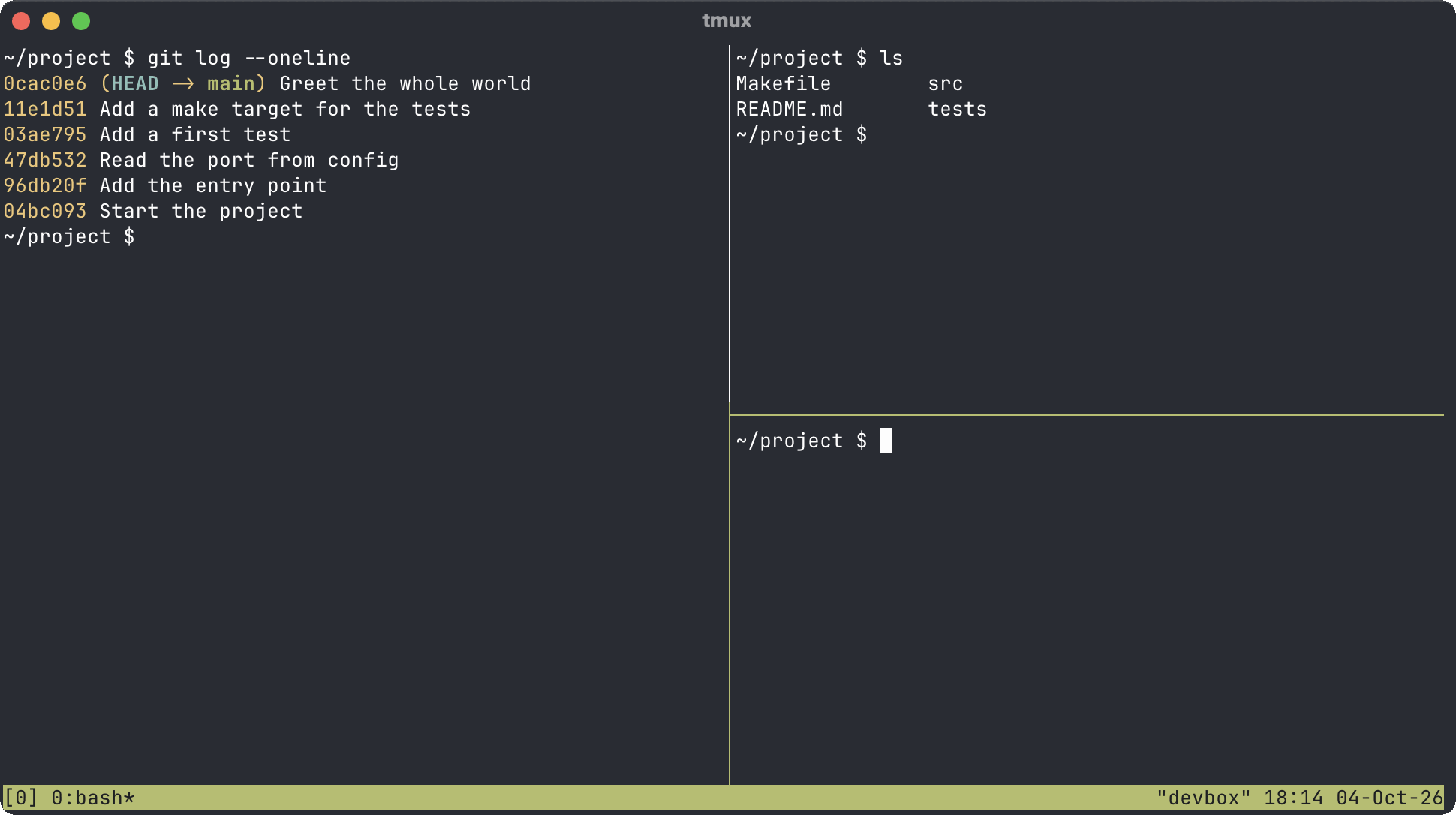
z is the quiet hero here: zoom a pane to fill the window when the output gets serious, then
zoom straight back when you’re done.
That table is the useful half of the defaults, not all of them. The full tmux cheat sheet has the rest — layouts, resizing, the command prompt and the copy-mode keys — in the same format, for the day you need something that isn’t here.
Scrollback and copy mode
Section titled “Scrollback and copy mode”Press prefix then [ to enter copy mode: scroll with the arrow keys or PageUp, and press q
to leave. With mouse mode enabled (see below), ordinary scrolling just works, and selecting
text with the mouse copies it. Purists will tut, and they are welcome to.
A starter config worth stealing
Section titled “A starter config worth stealing”The defaults are usable; this is better. Create ~/.tmux.conf:
# Splits that look like the splits they producebind | split-window -hbind - split-window -v
# Mouse: scroll, click to select panes, drag to resizeset -g mouse on
# Number windows and panes from 1 — 0 is the far end of the keyboardset -g base-index 1setw -g pane-base-index 1
# Close the numbering gap when a window is killedset -g renumber-windows on
# Generous scrollbackset -g history-limit 50000
# True colour, assuming a terminal from this centuryset -g default-terminal "tmux-256color"set -as terminal-features ",xterm-256color:RGB"
# Take the lag out of Escape for vim usersset -sg escape-time 10
# Reload this file with prefix + rbind r source-file ~/.tmux.conf \; display "Config reloaded"
Apply it to a running tmux with tmux source-file ~/.tmux.conf, or simply start a new session.
The two colour lines are the ones most worth understanding rather than copying. On a current
build default-terminal is already tmux-256color, and is only there for older ones. The
terminal-features line matters because tmux reads terminfo rather than your terminal’s own
claims, and its pattern must match the TERM of the terminal tmux runs in. Why terminal colours
go wrong in tmux takes that apart layer by layer.
Surviving reboots
Section titled “Surviving reboots”tmux sessions live in memory, so rebooting the machine still takes them with it — the one gap in the persistence story. The tmux-resurrect plugin snapshots and restores sessions, and tmux-continuum does it automatically on a timer. Worth the five minutes once you’re sold on the rest.
It is also the clearest thing Zellij does better: the newer multiplexer serialises sessions to disk by default, so they come back after a reboot with no plugin at all. Whether that is worth the switch is a longer argument, and we have had it.
Where next
Section titled “Where next”Keep the cheat sheet open in another window until the keys stop
needing looking up — it is every default binding in tables, which is a faster answer than
prefix ? when you don’t yet know what you’re looking for.
tmux is the layer underneath everything else in your setup. Put a decent window around it with our terminal emulator roundup, make the prompt inside every pane earn its keep with Starship, and keep your fingers honest with the keyboard shortcuts worth memorising — they all work inside tmux, which is rather the point.